More
Сhoose
  • Client: Verify Dynamics — for a logistics client
  • Date: September – October 2026
  • Role: UX Design & Frontend Engineering
  • Stack React · TypeScript · JSON Forms · MUI
  • Status Working prototype, reviewed by the product team

One wide table, 2.4 screens deep

A logistics client checks its trip sheets in ProcessFactory — Verify Dynamics’ workflow platform — before it bills its customers. I redesigned how reviewers work through them: from one wide table, where a single row could unfold into 2.4 screens of nested tables, to Data Cards — a list of cards that open in place, save as you type, and show exactly where the problems are.

A trip sheet records one vehicle’s trip: the vehicle, kilometres, stops, crew and documents. A reviewer works through a batch of them, fixes what’s wrong and submits the batch for billing. The catch: every trip sheet carries lists of its own, and the whole batch sat in one table.

Before: one row, 2.4 screens

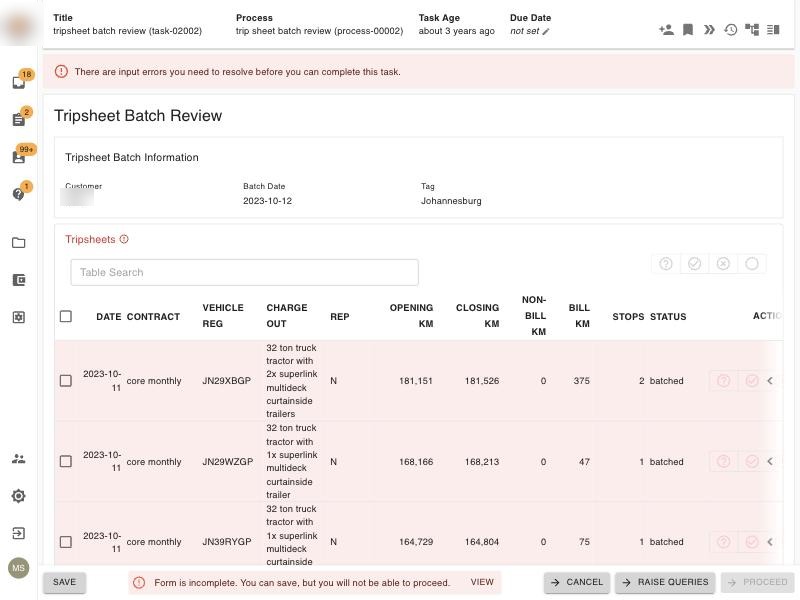
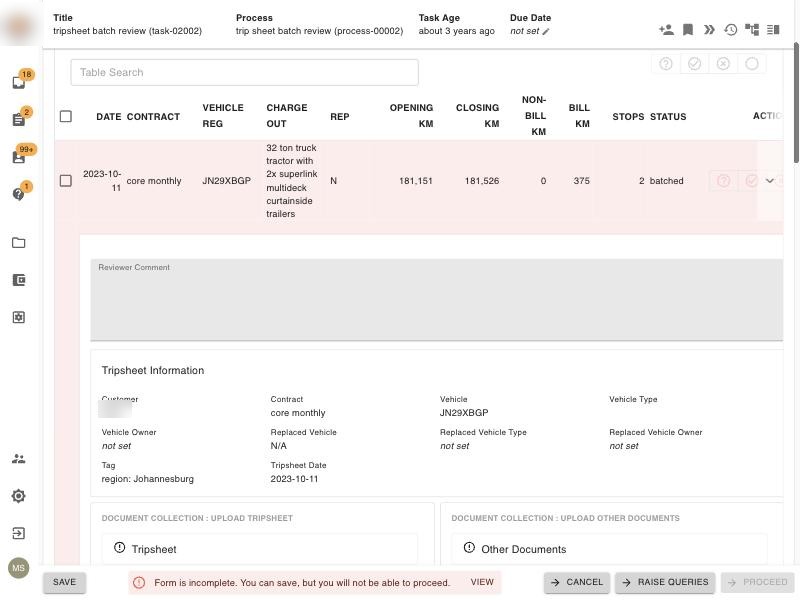
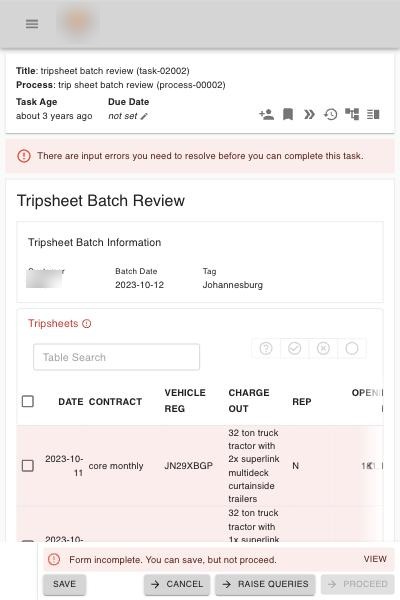
Sixteen trip sheets, twelve columns. Every row is tinted pink, and the error banner doesn’t say where the errors are. Open a row and a whole form unfolds inside the table — with two more tables inside it, each with its own pager.

The Tripsheet Batch Review task: a 12-column table of trip sheets, every row tinted pink

The batch: every row flagged, no hint of where the errors live. Names and client details blurred.

One trip sheet row expanded into a reviewer comment, trip sheet information and document uploads

A whole form unfolds inside the row…

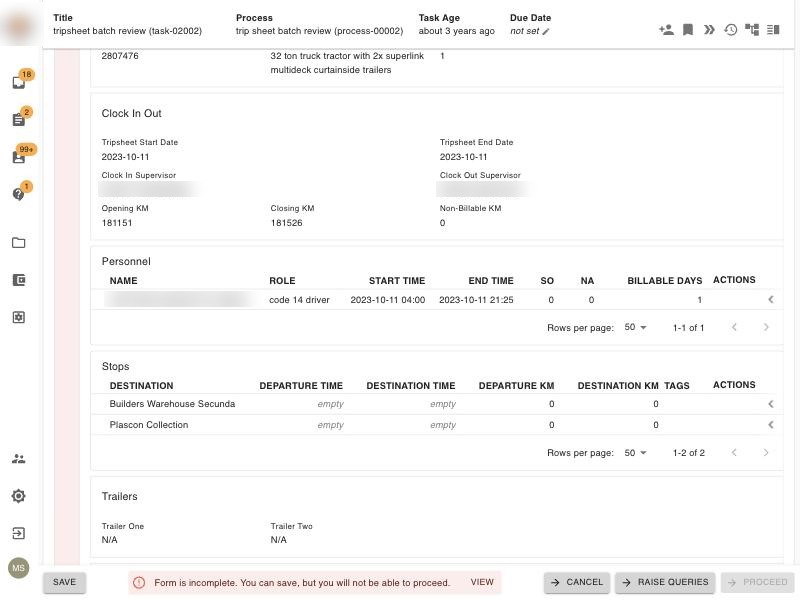
Inside the expanded row: Personnel and Stops tables, each with its own Rows per page pager

…with two more tables inside it, each with its own pager.

  • 2,141px for one expanded row. The column headings are gone after the first screen.
  • 3 pagers stacked on one screen: the batch, the crew and the stops each page separately.
  • Actions or the date, not both. Scroll sideways to reach a row’s actions and its date slides out of view.

The idea

Keep the list. Open the item where it sits. Do the same one level down.

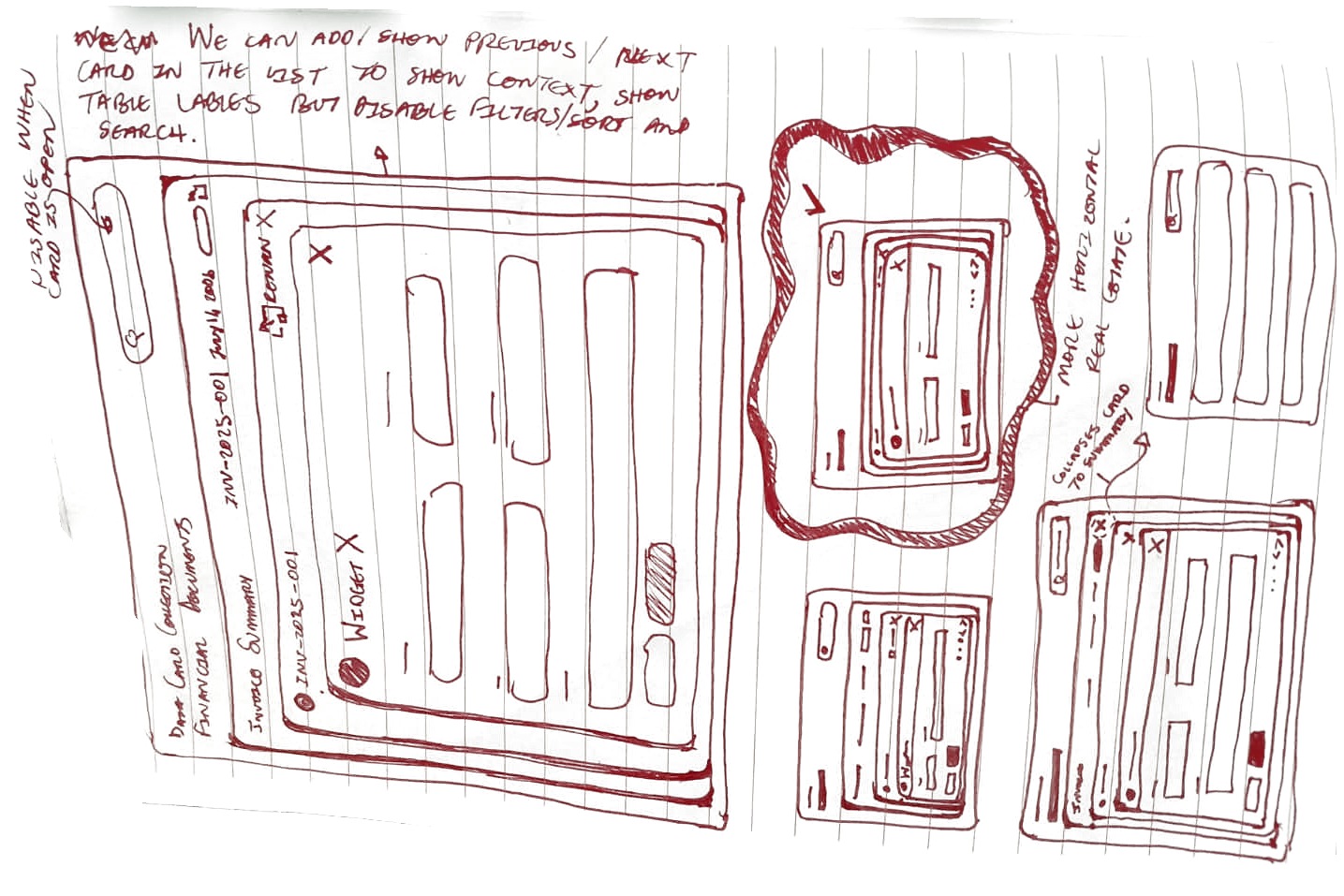
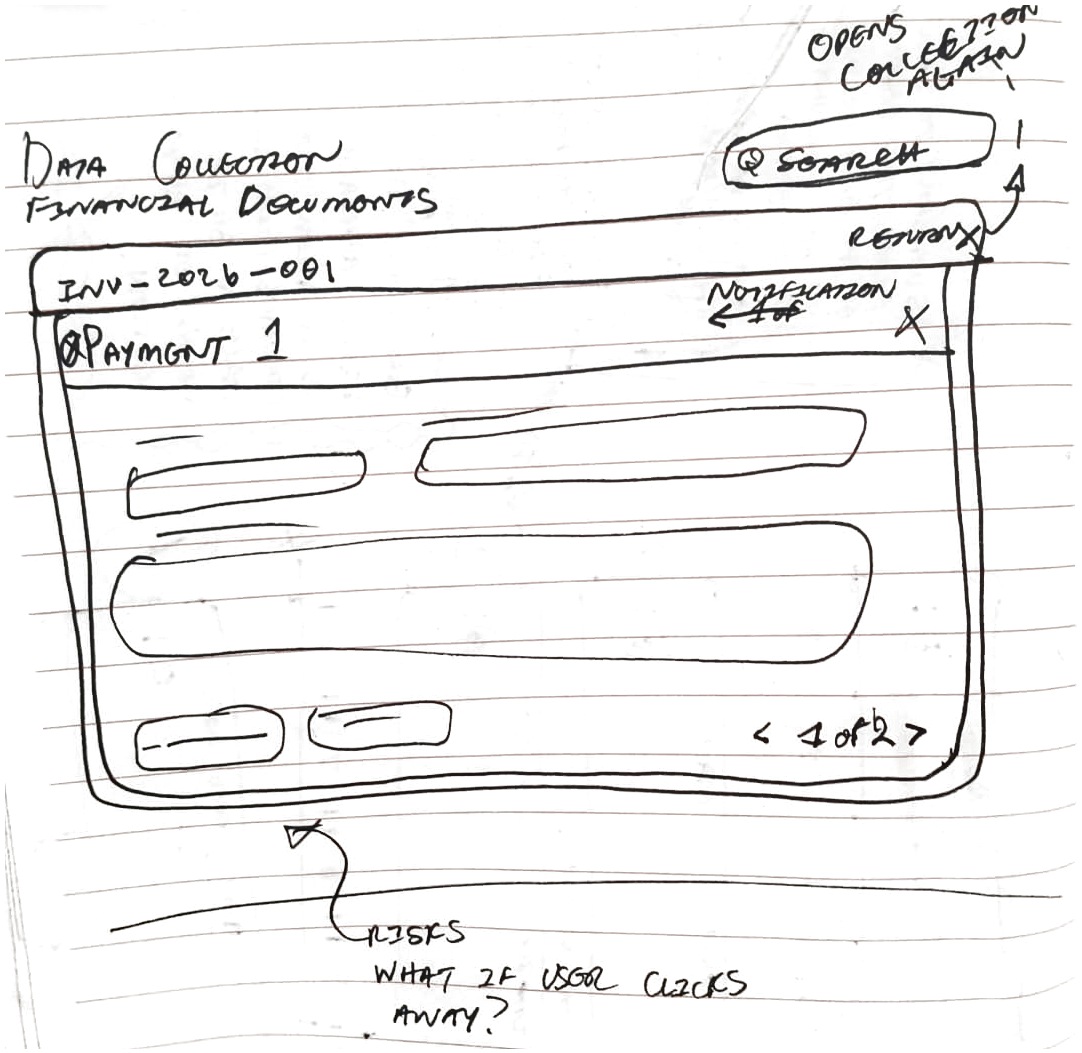
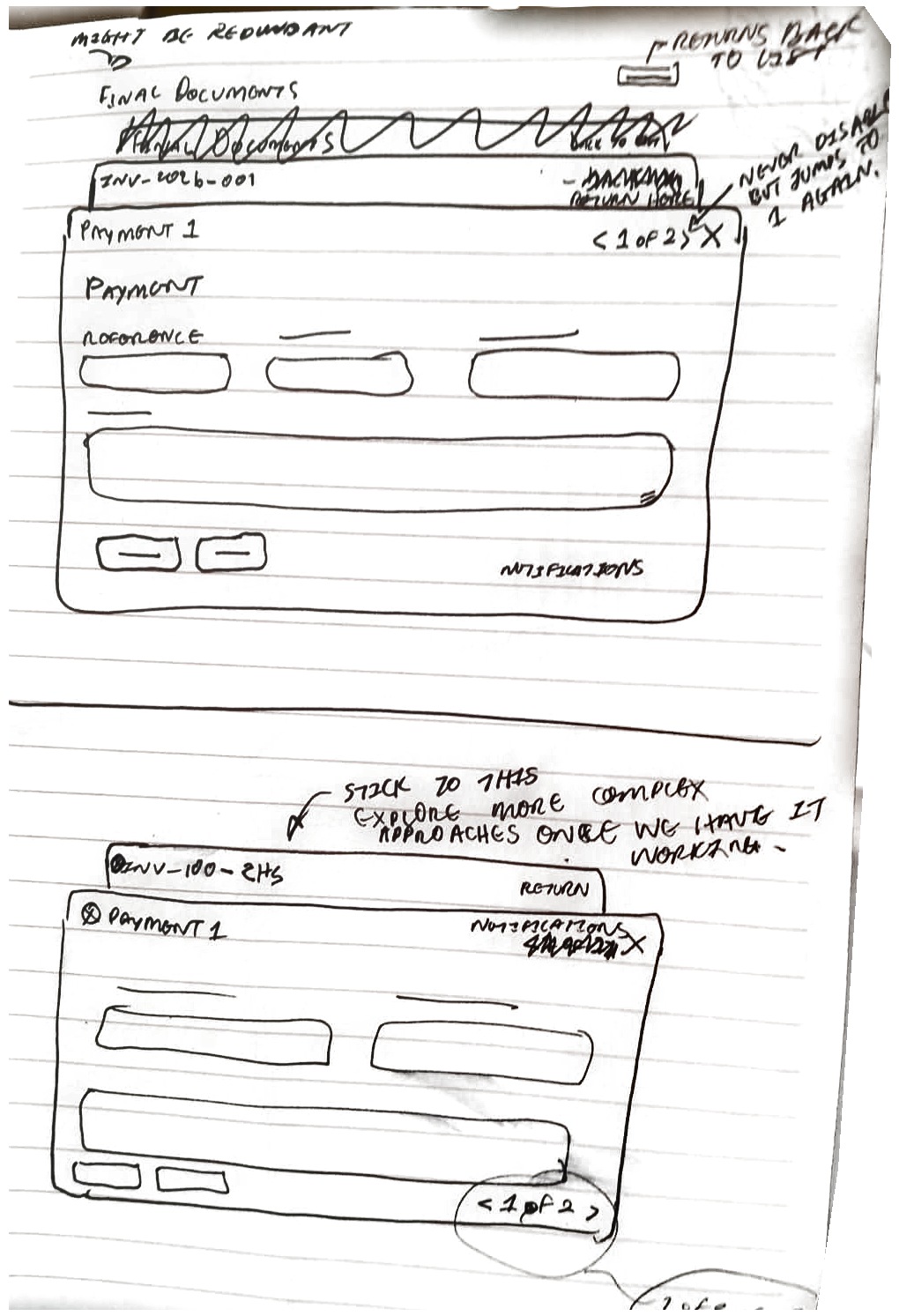
I sketched the model first: nesting in place with the column labels kept for context, a drill-down with a link back — and its risk noted underneath (what if the user clicks away?) — and previous/next drawn in two places. I shipped the foot first, and later measured why the header was right.

Notebook sketch: an opened invoice with a product open inside it, and smaller layout variants

Nesting in place, with search and sort frozen while a card is open.

Notebook sketch: a drill-down where an invoice and a payment replace the list, with a Return control

A drill-down with a Return control — and its risk noted underneath.

Notebook sketch: stacked headers, with “1 of 2” drawn beside the X and again at the foot

Previous and next, sketched in two places.

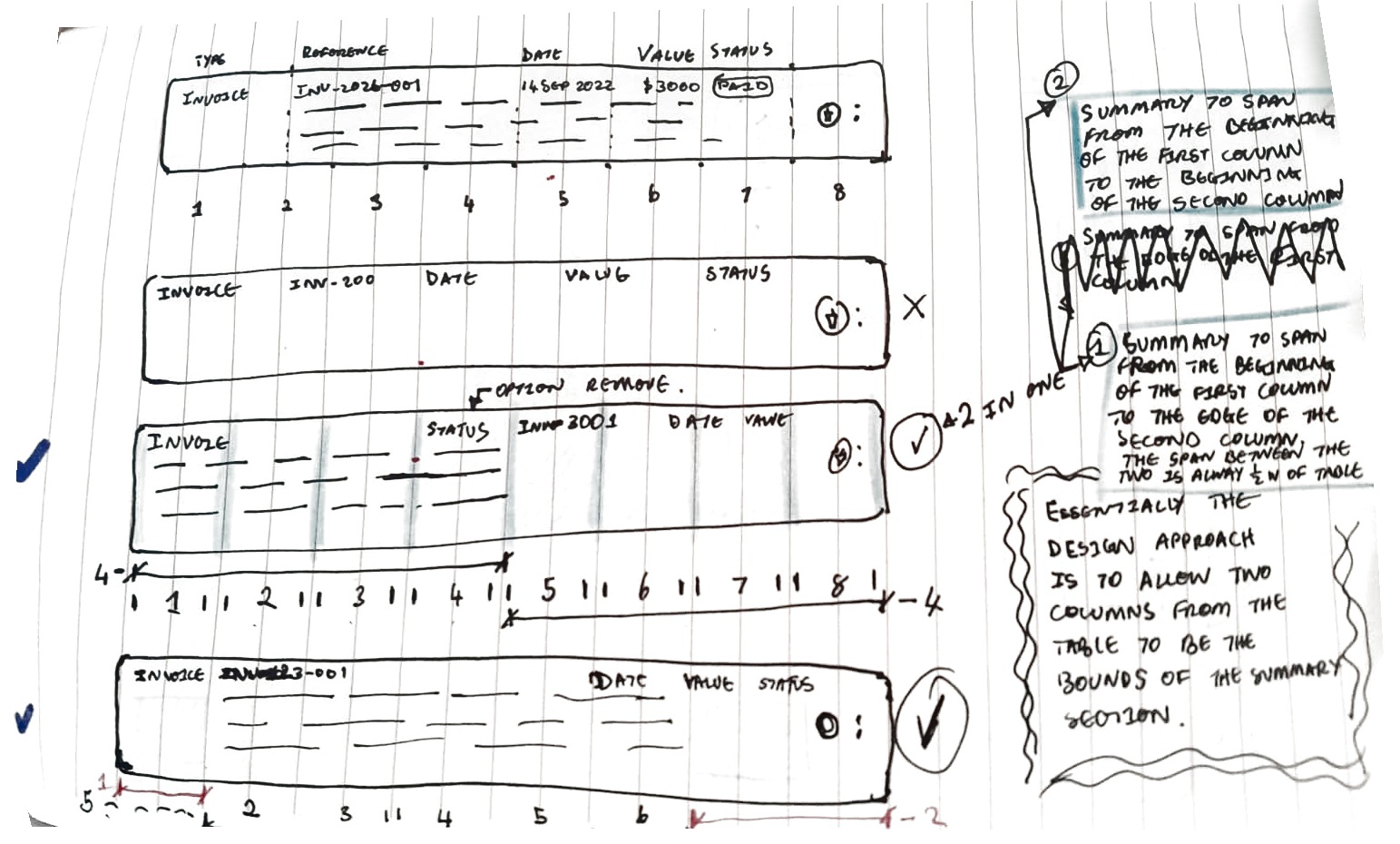
Notebook sketch: card rows on an 8-track column grid, with summary blocks bounded by column edges

Summaries on the column grid — the next idea to build.

After: Data Cards

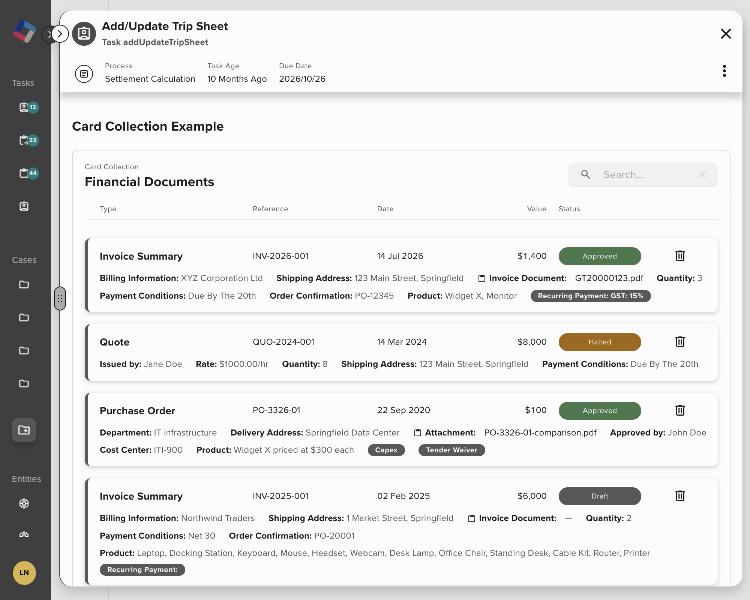
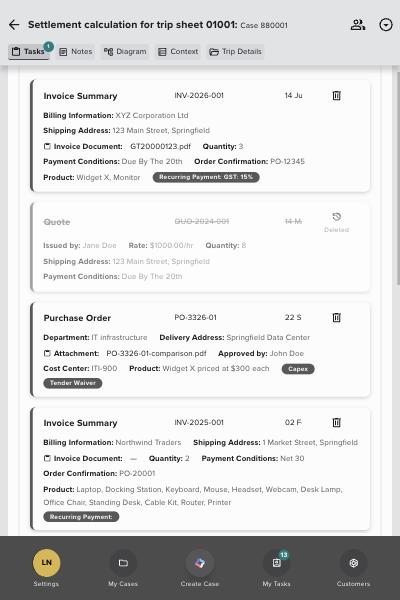
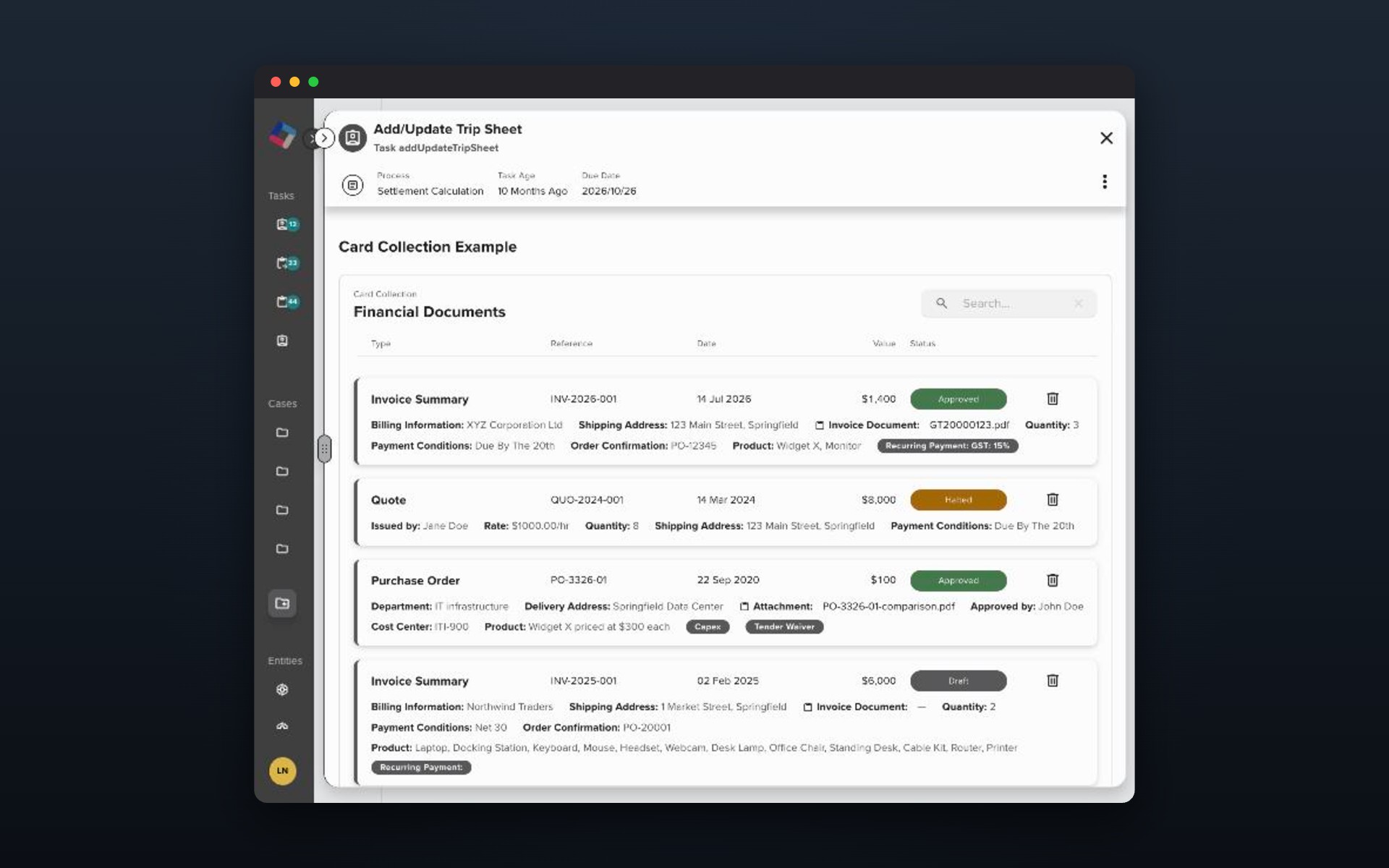
The prototype runs inside the real ProcessFactory task screen, on demo data: a trip sheet settlement with 23 financial documents — invoices, quotes and purchase orders, some with lists of products inside them.

Financial Documents as data cards: each with a row of common fields and a summary below

Every item at a glance: the common fields in a row, the rest in a summary.

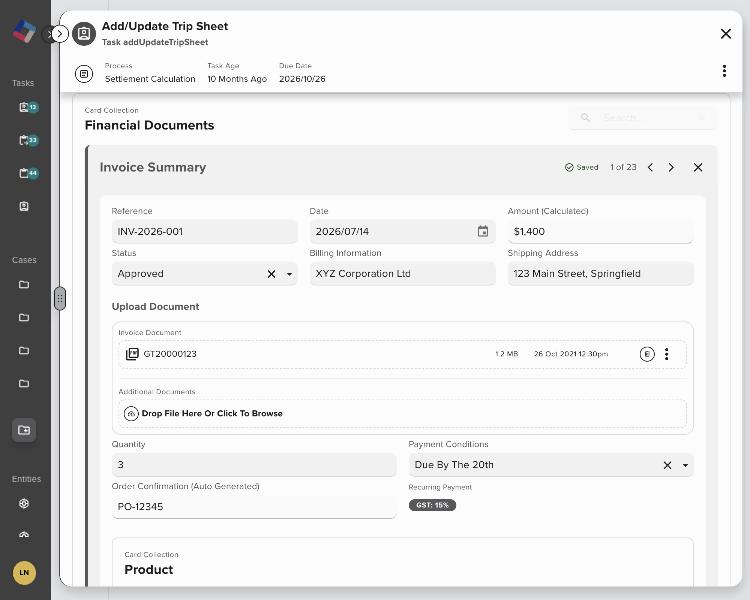
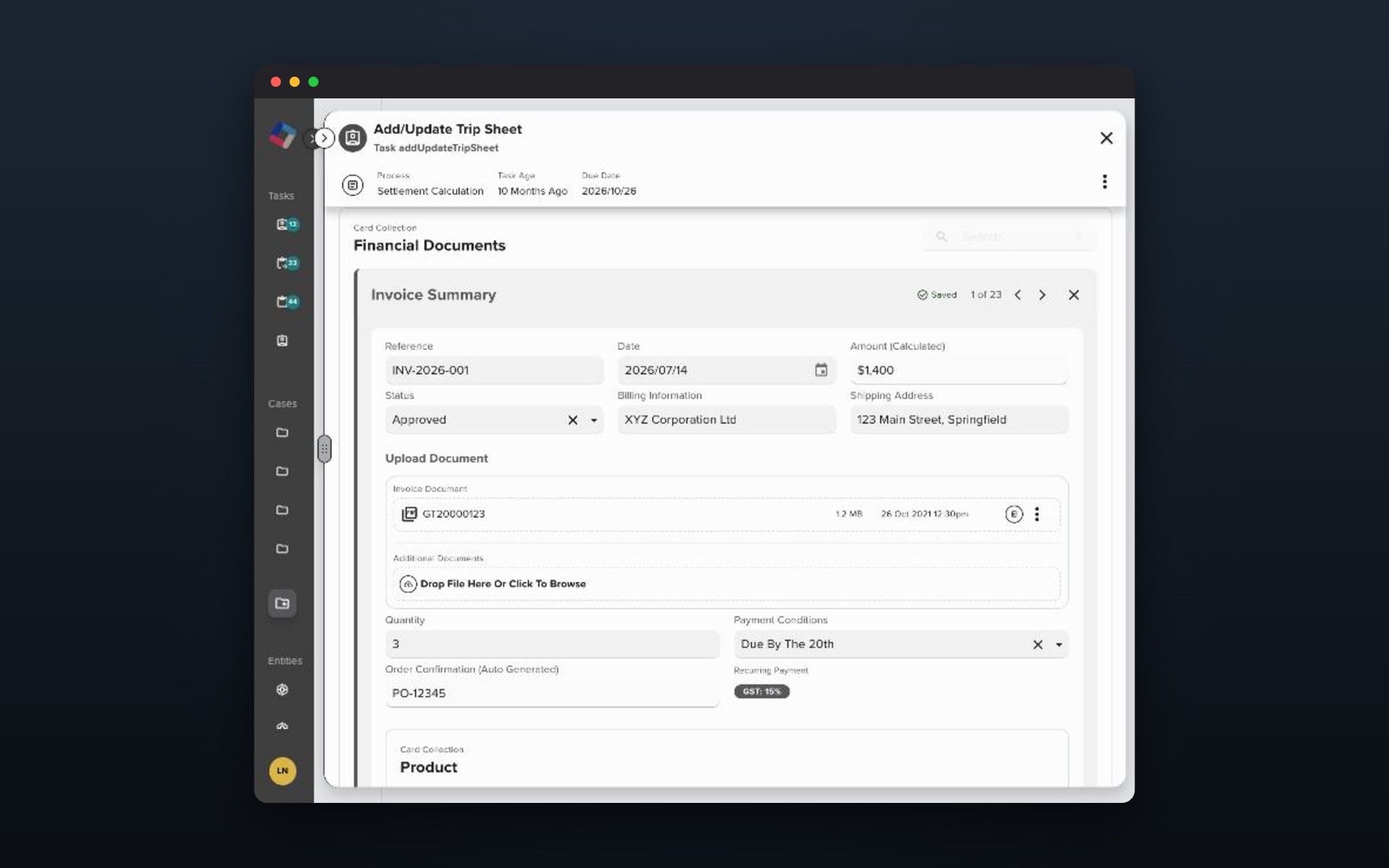
An Invoice Summary opened in place, its strip showing Saved, 1 of 23, previous, next and close

A card opens where it sits. Its header shows the save status, “1 of 23” and previous and next.

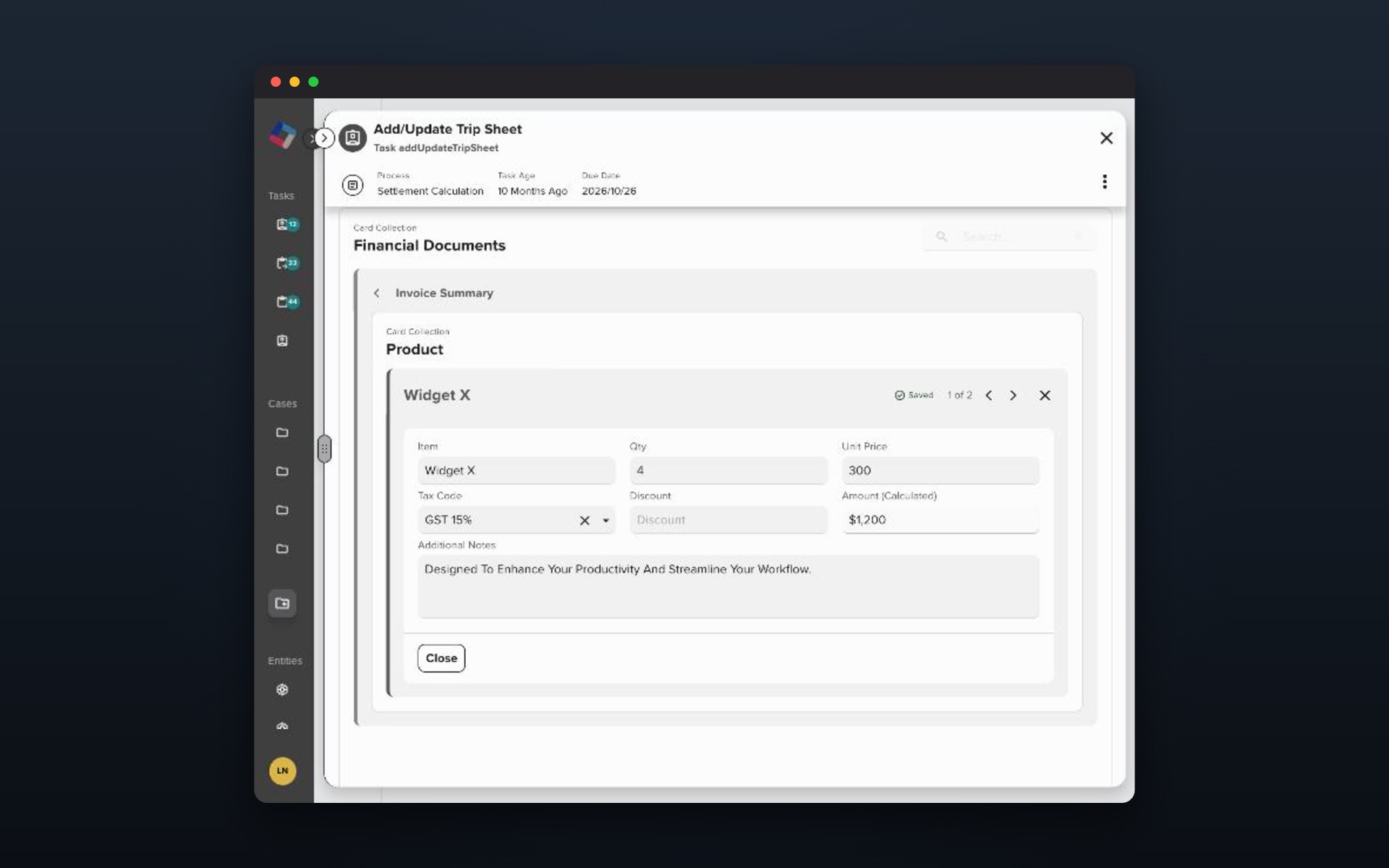
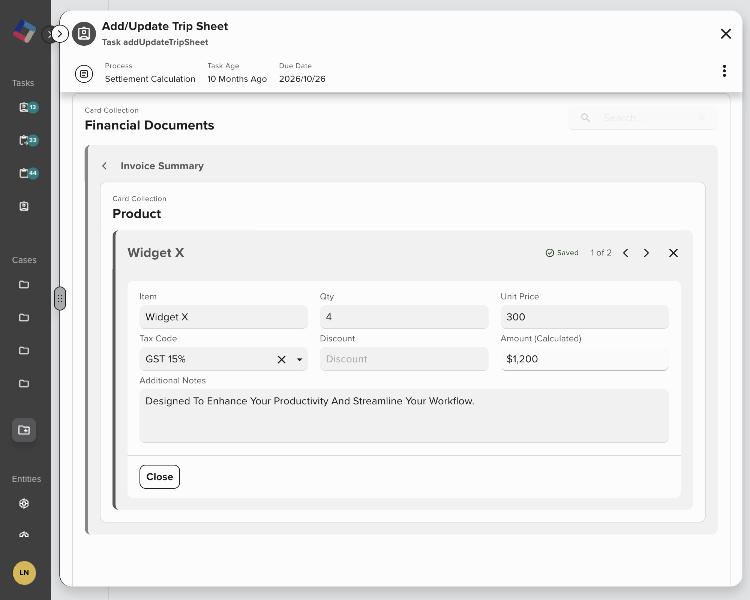
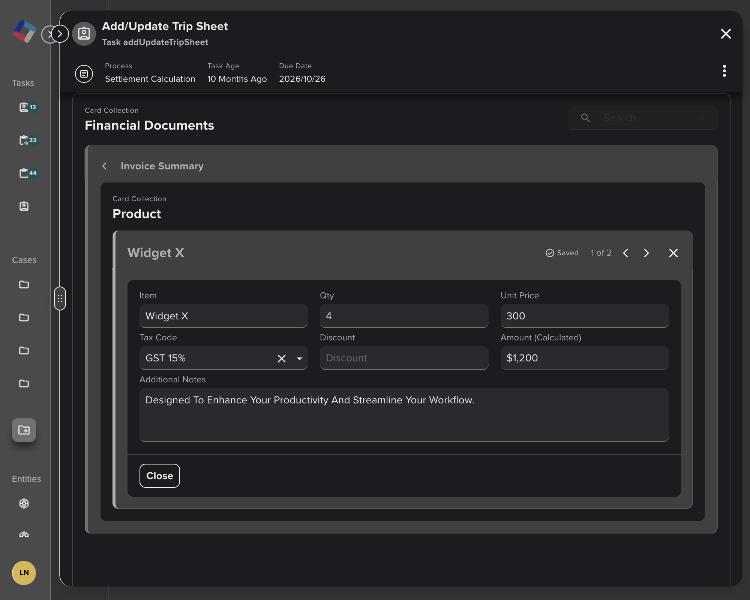
A product open inside the invoice, under an Invoice Summary breadcrumb

One level down, the parent becomes a link back. Only the level you’re editing can be closed.

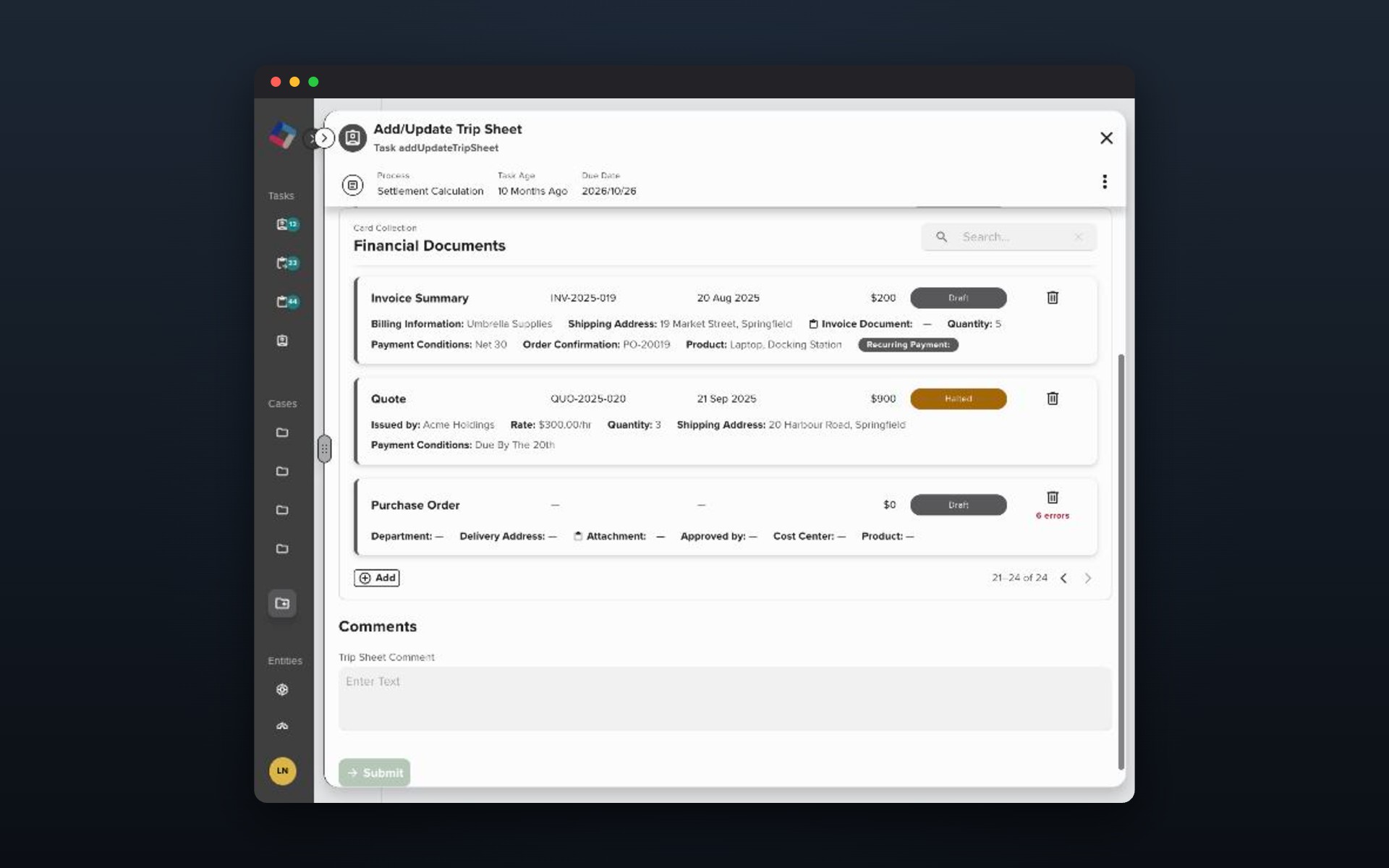
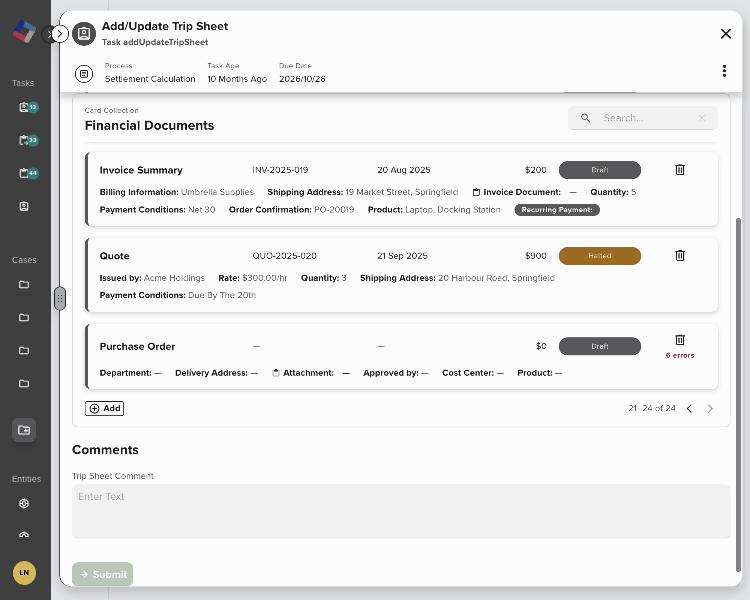
A new Purchase Order card showing 6 errors in its gutter, with Submit disabled below

Errors sit on the card that has them. Submit waits; closing the card doesn’t.

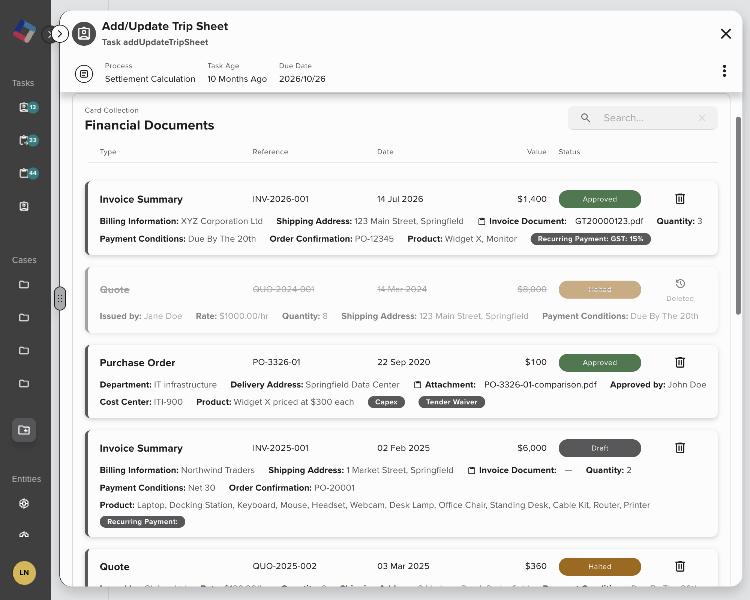
A deleted Quote, dimmed and struck through, with a restore icon

Delete is soft: the card dims until the batch is submitted, with Restore in reach.

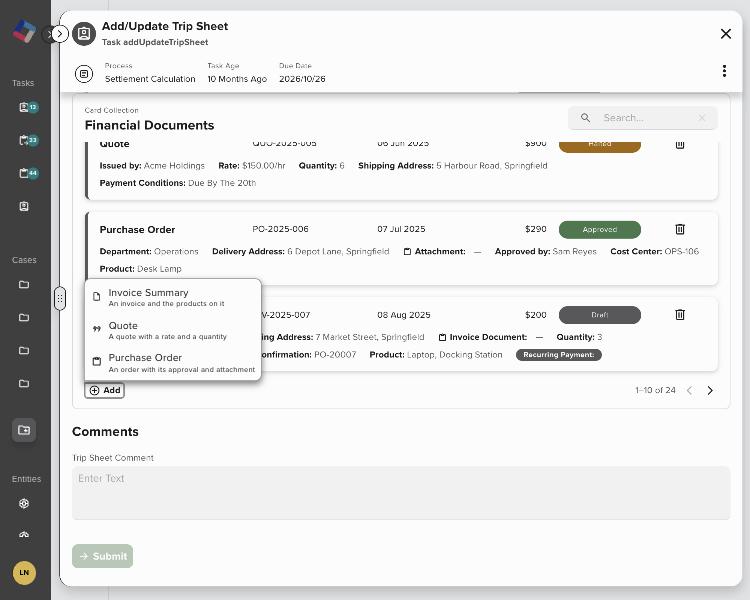
The Add menu listing Invoice Summary, Quote and Purchase Order

Add offers each kind of document.

At the same 600px width:

The old table at 600px, showing 5 of 12 columns

Before: 5 of 12 columns, and the expand control sits on top of a value.

Data Cards at 600px: every card’s fields readable in its summary

After: every field is in reach, in the summary.

Before: one tableAfter: Data Cards
Opening an itemA form unfolds inside the row, 2,141px tallThe card opens in place; the others fold away
A nested listA table inside the row, with its own pagerIts own list of cards, one level down, with a link back
ErrorsEvery row tinted; no location givenAn error count on the card, the message on the field
Moving onScroll back to find the next rowPrevious and next in the header, always in the same spot
A narrow panel5 of 12 columnsEvery field in the summary; Type and actions stay pinned

Three moments that shaped it

1. We were saving twice

My first build gave every open card its own draft, with OK, Cancel and a “you’ll lose these changes” warning. The design review pointed out that ProcessFactory already saves every form automatically, so the cards were a second save system inside the first. I switched them to save as you type, and the drafts, the OK step and the warning all went: less code, and less for reviewers to think about.

2. Chasing the Next button

In review, clicking Next made the button jump 272 pixels up the screen, so stepping through cards meant chasing it with the mouse. Moving it into the card’s header helped, but short cards still dropped it 100 pixels, and for a single frame it drew 66 pixels low. I measured the button’s position on every animation frame until it stopped moving. Now Next lands on the same pixel every time, at every level.

3. The bug the screen hid

After switching to autosave, everything looked perfect on screen. Then I reopened the task, and the last few edits were gone. Each time a card’s error count changed, the form quietly reloaded data that was one edit old — and saved that. The fix was small. The lesson changed the test plan: every save test now ends by reopening the task and checking what actually stuck.
Dark mode

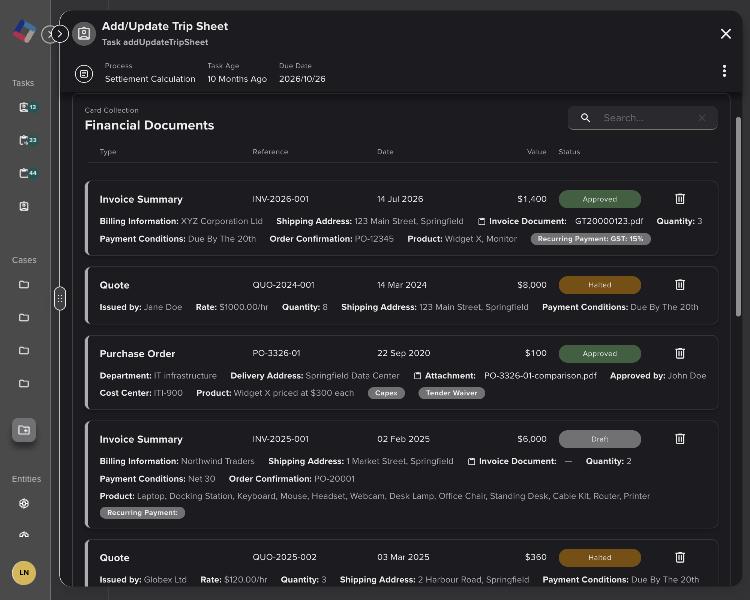
In light mode, shadows and a strong coloured bar show which card is open and how deep you are. On a near-black background, shadows vanish and the surfaces nearly matched, so the levels blurred together.

Financial Documents in dark mode: closed cards edged by a faint outline

Closed cards get a faint outline where a shadow can’t show.

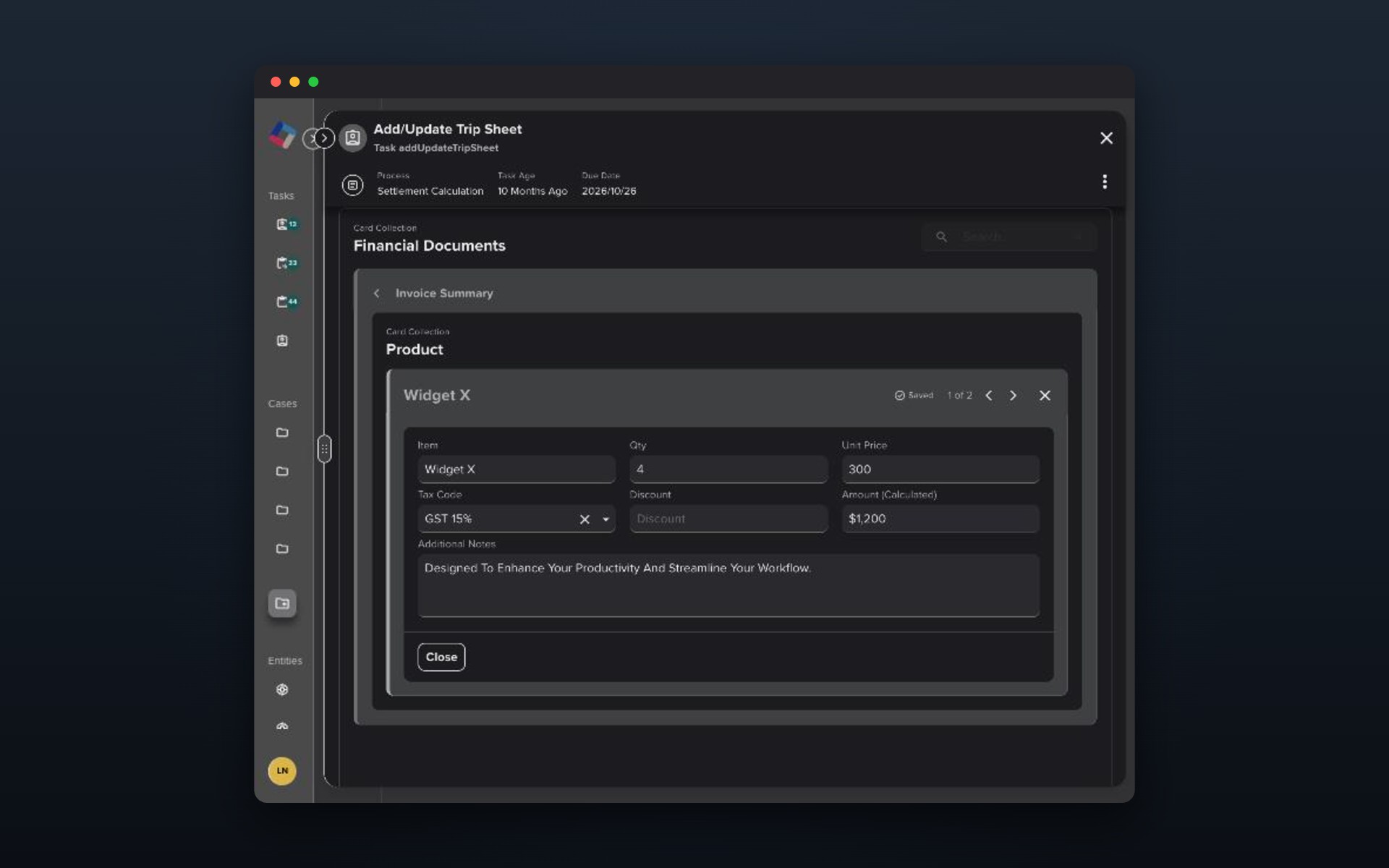
A product open inside an invoice in dark mode: lighter surrounds, outlines and a bright accent bar on the open product

The bar is bright on the level you’re editing and dimmer on its parent — both pass the 3:1 contrast minimum.

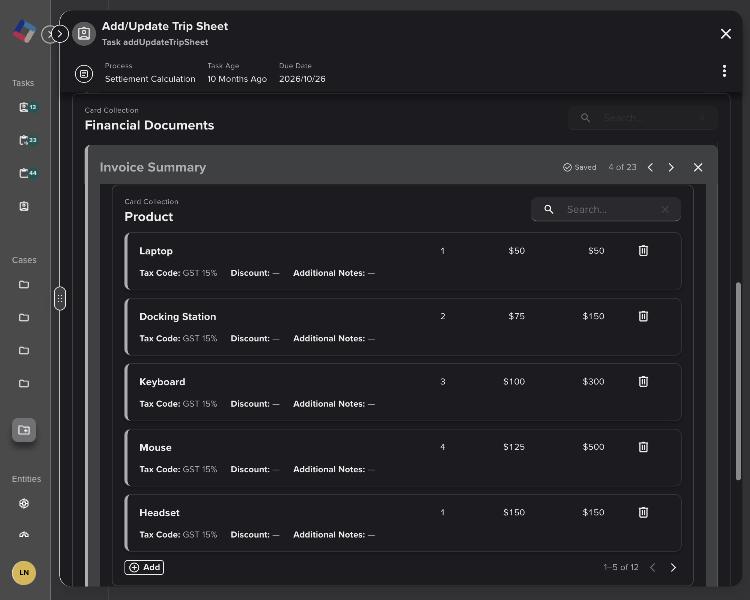
A 12-product invoice in dark mode: 4 of 23 in the strip and 1–5 of 12 at the foot of the product list

One pager per level, never side by side: “4 of 23” up top, “1–5 of 12” at the foot.

Built to be reused

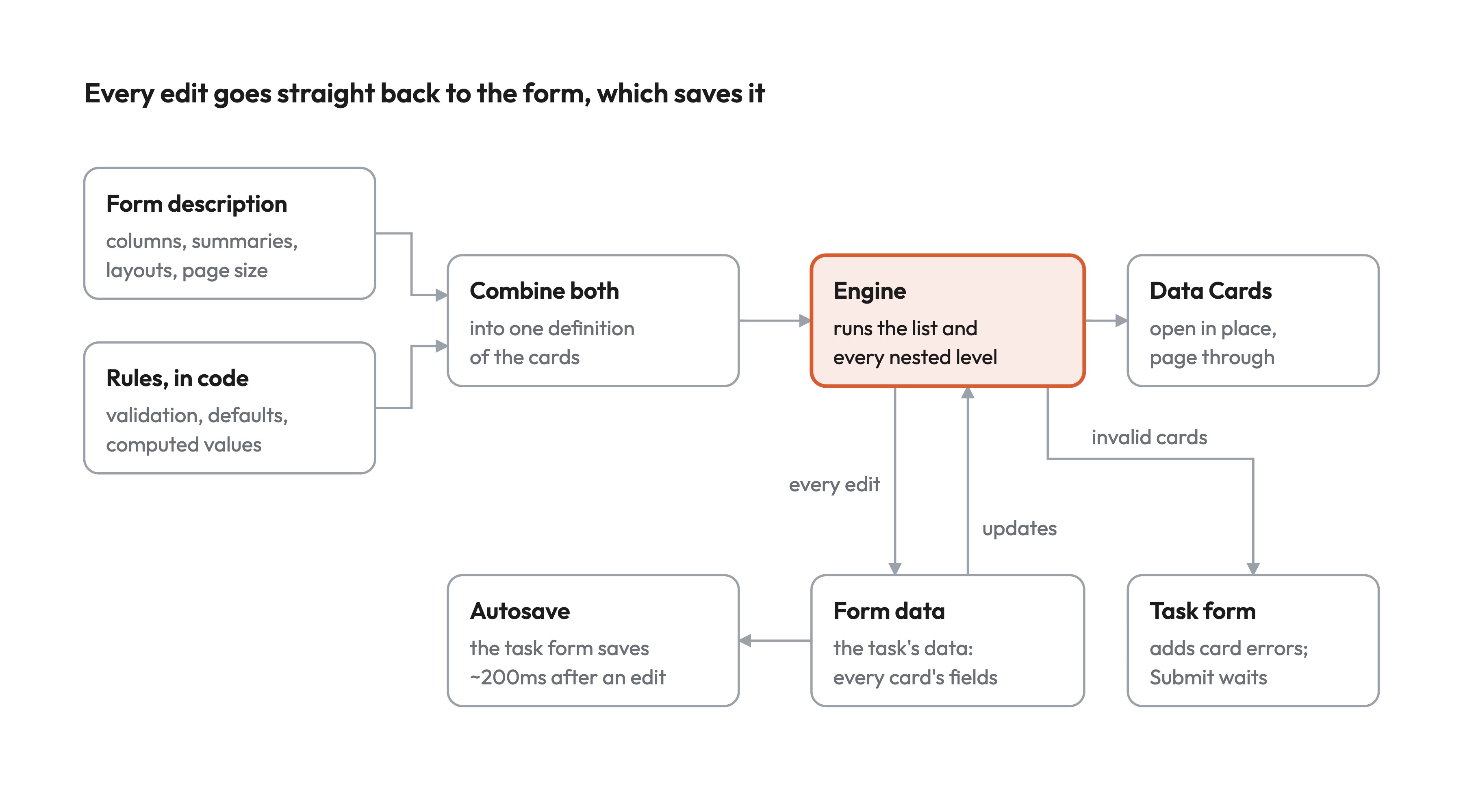
The cards aren’t hard-coded for trip sheets. A form describes what each card shows, a small piece of code adds the rules a form can’t hold, and one engine runs every level. The same component can serve any client’s form.

How a card collection is described, run and saved: form description and rules combine into one definition, one engine runs every level, every edit goes back to the form

The journey

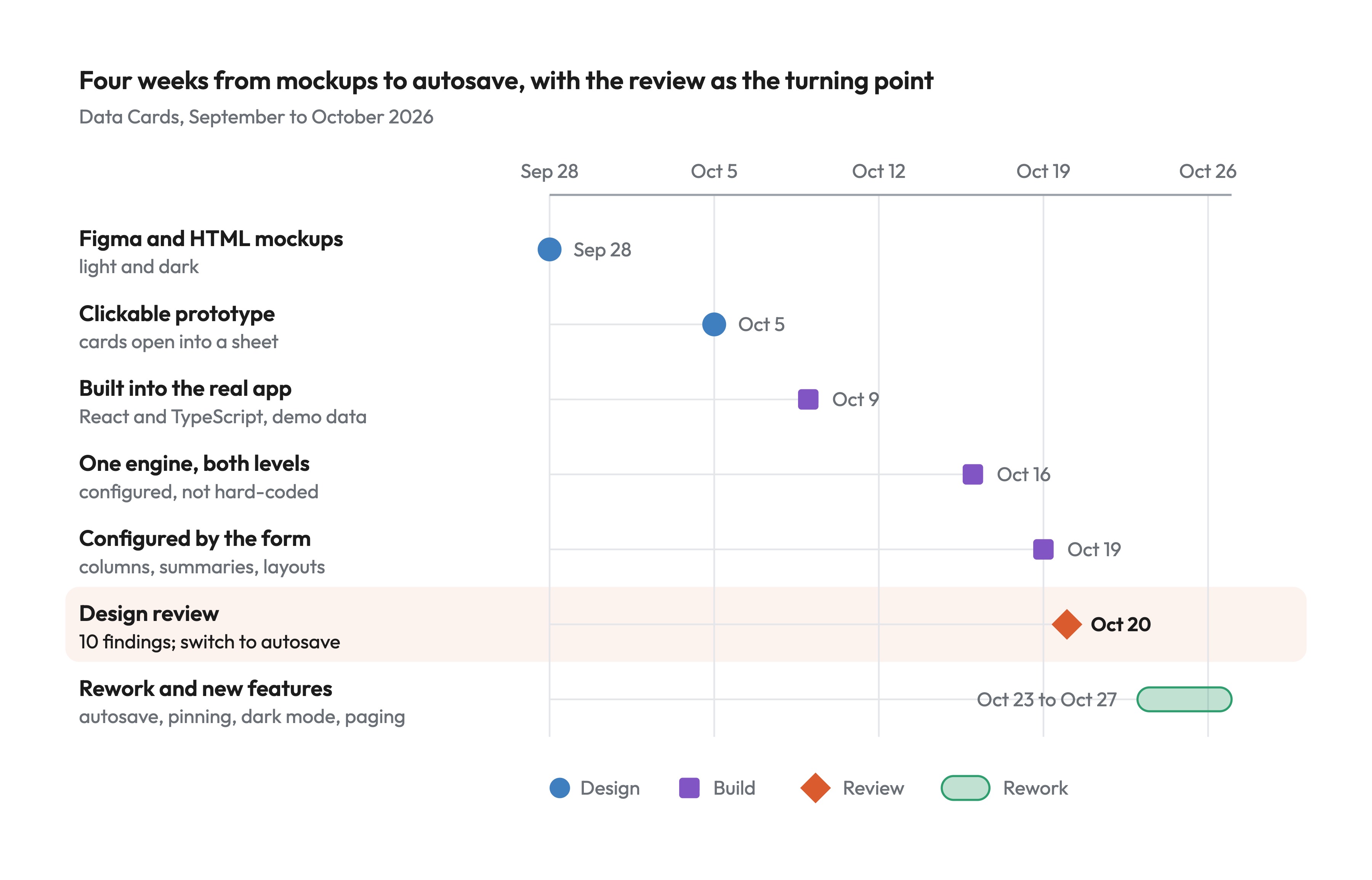
Four weeks from mockups to autosave — Figma and HTML mockups, a clickable prototype, then React and TypeScript inside the real app. The design review on 20 October was the turning point: 10 findings, and the switch to autosave.

Timeline, 28 September to 27 October 2026: mockups, prototype, build milestones, the design review and a final week of rework

Results

  • No confirmation dialogs. Close a card and the work is already saved.
  • One engine for every level, configured by the form rather than hard-coded.
  • Navigation that stays put: previous and next land on the same pixel every time.
  • Accessible in dark mode: every accent passes the 3:1 contrast minimum.
  • Tested: 76 automated tests and a 92-check manual test script.

What’s next

  • Lay summaries out on the column grid, from the last sketch.
  • Let the form define validation too, so a new client’s form needs no new code.
  • Align the prototype with the product specification, then take it from prototype to release.

What I learned

  • Match the platform. A careful-looking draft system was a second save system inside a product that already saves everything.
  • Measure motion. The worst navigation bugs lasted one frame. Sampling positions frame by frame found them; screenshots didn’t.
  • Check what’s saved, not what’s shown. The screen looked right while the data was wrong.
Looking to make your mark? I'll help you turn
your project into a success story.

Ready to bring your ideas to life?
I'm here to help